Special Fields
BusyContacts includes several special fields, in addition to the standard predefined fields you'd expect to find in a contact manager (phone, email, URL, address, etc.).
Each of these fields can be shown by default on all cards in Info Panel Preferences or you can add fields to a single card using the add field menu.
Pin
The Pin field is a checkbox that can be used for marking important contacts. Pinned contacts are displayed at the top of the contact list, above all other contacts, making them easy to find. You can pin a contact in the Info Panel by checking the Pin checkbox, or by choosing Edit > Pin (or typing Command-/). For example, you may be reviewing your holiday mailing list from last year and using the Pin field to mark the ones that have been naughty or nice. You can then sort the List View by the Pin field, or create a Smart Filter to show only the contacts that are pinned, and perform further actions on them such as tagging them or printing envelopes or mailing labels.
Local Time
The local time for the selected contact is displayed directly in the Name Tile, the area at the top of the Info Panel that shows the contact's name and photo. It appears below the contact's name fields, showing a clock icon alongside the current time in the contact's time zone. The time zone is determined from the contact's primary phone number. For example, a contact whose primary phone is in the 609 area code (New Jersey) will show the current Eastern time.
You can enable this field in Info Panel Preferences or add it to an individual card via the add field menu.

Related
The Related field allows you to enter the name of a related person (e.g. spouse, sibling, coworker, etc.). If a card for that person exists in BusyContacts the name will be auto-completed. You can click on the 'related' label and choose something more specific (spouse, child, mother, etc.) or enter a custom label. In browse mode you can click on a name in the Related field to open the corresponding card in a floating window (or hold down the option-key while clicking to open it in the same window).
There is a known issue in Apple Contacts where changes to the Related Name field may not sync properly with iCloud.com or BusyContacts.
To ensure your updates are reflected correctly, make changes directly in the online version of Contacts.

Tags
The Tags field allows you to instantly see and edit the Tags associated with a contact. See Tags to learn more about this powerful feature.

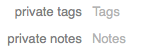
Private Tags and Notes
The Private Tags and Notes fields allow you to store data for a contact that is not synced with the server. This might be useful if you are sharing an address book with others and want to keep certain information private.
Attachments
The Attachments field allows you to store file attachments with contacts. Note: iCloud limits the total size of a contact card to 256k, and that includes the profile photo. So, in most cases, you will not be able to add an attachment to a contact on iCloud unless it is very small. As a work around, you can drag an attachment onto a contact card and that will create a link to the attachment.

Modified
The Modified field shows you when a contact was last edited and by who.

Show Dates
You can display the Birthdays and Anniversaries of your contacts in BusyCal. The Show Dates checkbox appears on any contact that has date fields and lets you choose which ones to display in BusyCal. This can be very handy for hiding dozens of vague acquaintances whose birthdays are cluttering up your calendar. Note that this setting is stored locally on each Mac and does not sync between devices.

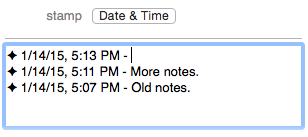
Date & Time stamp
While editing a contact, a Date & Time shortcut button appears in the toolbar. Clicking it inserts a date/time stamp into the Notes field using the default format. Long-clicking (or clicking and holding) the button reveals a menu of additional format options, including short date, long date, date & time, time only, weekday, month, and more. You can also access these formats via the Edit > Insert Date & Time menu. The keyboard shortcut is Command-'.
By default the stamp is inserted at the top of the Notes field. To insert at the cursor position instead, use Edit > Insert Date & Time Above Content to toggle the insertion preference.