Activity List
Activity List for Contacts
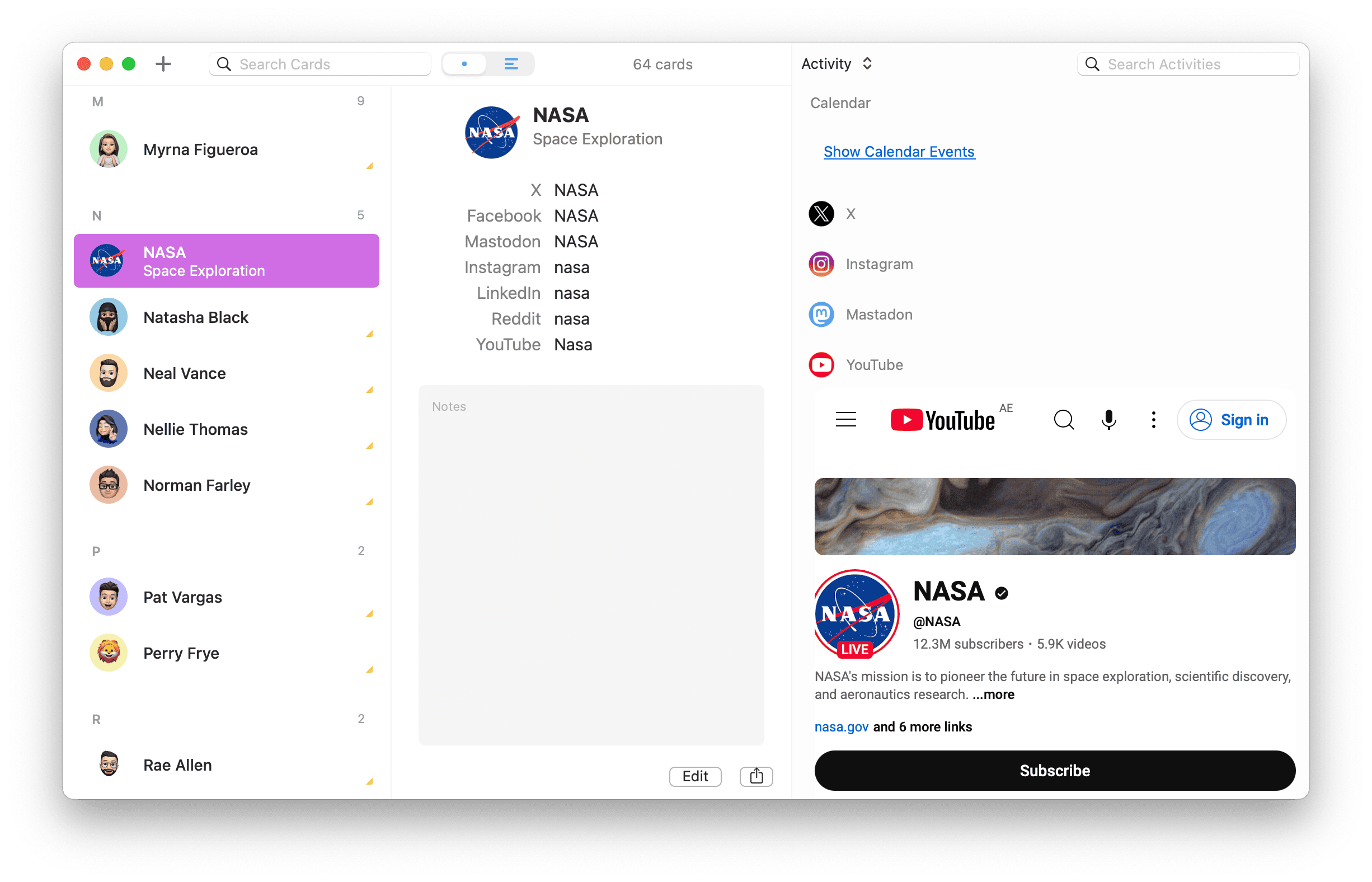
The Activity List provides a chronological view of activities associated with a selected contact, allowing you to track interactions, browse social media feeds, and view calendar events from one central location.
To show or hide the Activity List, go to View > Show/Hide Activity List.
Activity Categories
- Calendar Events – Displays events from BusyCal that include the selected contact as a participant or a linked contact.
- Mail – Displays messages associated with the selected contact through Apple Mail's extension or MailMate's Spotlight integration. See email app compatibility.
- Messages (iMessage) – BusyContacts can open Messages for a contact, but it does not currently show your Messages.app history inside the Activity List. See BusyContacts is not showing iMessage / Messages activity.
- Bluesky – Displays the user’s Bluesky feed.
- Dribbble – Displays the user’s Dribbble feed.
- Facebook – Displays the user’s Facebook feed.
- Github – Displays the user’s Github feed.
- Instagram – Displays the user’s Instagram feed.
- LinkedIn – Shows the user’s LinkedIn feed.
- Mastodon – Shows the user’s Mastodon feed.
- Pinterest – Shows the user’s Pinterest feed.
- Reddit – Shows the user’s Reddit feed.
- TikTok – Shows the user’s TikTok feed.
- Twitter (X) – Shows the user’s X (formerly Twitter) feed via nitter.net, as direct access is no longer available.
- YouTube – Displays the user’s YouTube feed.
Most social networks (including Instagram, Facebook, LinkedIn, Pinterest, TikTok, and others) no longer permit anonymous access to their feeds. When an embedded page loads you will be prompted to Sign In with your own account. Sign in once per network and BusyContacts will display the feed inside the embedded browser using that session. Your credentials stay with the service and are not stored by BusyContacts.
Adding Mail
To show messages from Apple Mail, enable the BusyContacts Mail Assistant extension as described below. For MailMate or another email client, see email app compatibility.
- BusyContacts captures matching messages as Apple Mail makes them available, including messages you view or send. Capturing new incoming mail depends on what Mail provides to the extension.
- The extension cannot automatically import or search your entire mail history. Open older messages in Apple Mail to make them available for capture.
- A message must match an email address on a contact in BusyContacts.
- Captured activity is stored on this Mac only and does not sync between Macs.
Enable Mail activity
- Show the Activity List and enable the Mail categories from the Activity menu (Inbox & Saved, Sent, Trash).

- In BusyContacts > Settings > Integrations > Mail, enable Capture emails viewed or sent in Apple Mail.
- In Mail > Settings > Extensions, enable BusyContacts Mail Assistant. If it does not appear after installing or updating BusyContacts, quit and reopen Apple Mail.

- In Apple Mail, view or send an email to/from the contact, then switch back to BusyContacts.

BusyContacts Mail Assistant and Apple Mail's built-in S/MIME encryption cannot currently be used at the same time. To capture Mail activity, enable Mail Assistant. To use S/MIME, disable Mail Assistant under Mail > Settings > Extensions, then quit and reopen Mail. New Mail activity will not be captured while the extension is disabled.
See Mail Assistant and S/MIME for details.
Open a message
Double-click an email to open it in Apple Mail, or control-click and choose Show in Mail.

Adding Social Profiles
The Activity List displays social network feeds when available for the selected contact. To add a new social profile, follow these steps:
- Select a contact and click Edit.
- Click Add Field.
- Choose Social Network.
- Click the Social label in the new field and select the appropriate platform.
- Enter the username or profile URL, then click Done.
The selected social profile will now appear in the Activity List if supported.
Filtering Activities
By default, all activities are shown. If you wish to hide some activity types to reduce clutter, click on the Activity Menu and uncheck the item types to exclude.

You can temporarily also show or hide a section by clicking the section header.
Interacting with items in the Activity List
You can perform the following actions in the Activity List:
- Double-click on an item to open it.
- Hover over an item to see more info in a tooltip.
- Select an item and press the space bar to preview it in Quick Look.
- Control-click on an item to display a contextual menu for that item or section.
- Click a Task's checkbox to complete/uncomplete it.
- Click Show More to show 10 more items (Option-Click or Command-Click to show 100 more).
Searching the Activity List
You can search the Activity List to show only activities that match a text string. This only applies to Calendar Events.
Older Apple Mail plug-in
The legacy Apple Mail plug-in is no longer supported. Current BusyContacts releases use BusyContacts Mail Assistant, enabled under Mail > Settings > Extensions. Follow Adding Mail for setup and capture limits.
The old Manage Plug-ins steps, Spotlight importer commands, and repairs that changed macOS security settings do not apply to the current integration.
If an old plug-in installation prevents Apple Mail from opening, contact support with your macOS and BusyContacts versions before changing Mail's files.