Repeating Events
Repeating events reoccur at regular intervals (such as every day, every week, or the second Thursday of every month).
Creating Repeating Events
BusyCal allows you to create powerful recurring events with flexible patterns to handle everything from simple daily tasks to complex meeting schedules.
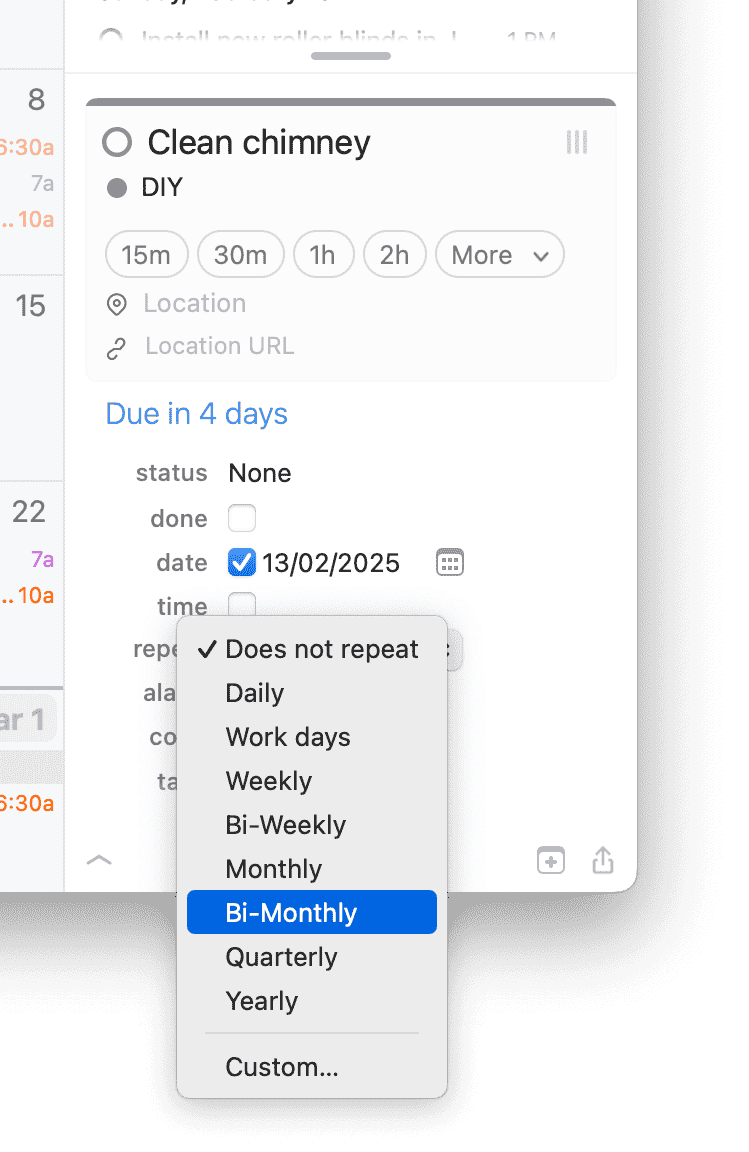
To create repeating events in BusyCal, click the "repeat" pop-up menu on the Info Panel and choose a repeat interval from the pop-up menu.

Editing a Repeating Event
Repeating events require special handling when you need to make changes. BusyCal gives you options to edit either a single occurrence or the entire series of events.
Editing a Single Instance vs. Entire Series
When you edit a repeating event, BusyCal will ask whether you want to:
- Edit This Occurrence - Changes only the selected instance
- Edit All Occurrences - Changes the entire repeating series
Techniques for Modifying Repeating Events
To Edit a Single Occurrence:
- Double-click the specific occurrence you want to change
- When prompted, select Edit This Occurrence
- Make your changes to that instance only
- The edited occurrence will now appear as an "exception" to the recurring pattern
To Edit the Entire Series:
- Double-click any occurrence in the series
- When prompted, select Edit All Occurrences
- Any changes you make will apply to every instance of the repeating event
Moving a Single Occurrence of a Recurring Event
In BusyCal, a single occurrence of a recurring event cannot be moved to a different calendar—only the entire series can be moved.
Why?
Recurring events are treated as a single entity tied to the same calendar - this is how all calendaring apps work. Moving one occurrence would break that structure, so any changes to the calendar apply to the whole series.
What Can You Do Instead?
If you need one instance of a recurring event on a different calendar:
- Duplicate the event → Right-click the occurrence and select Duplicate Event.
- Move the duplicate → Drag it to the desired calendar.
- Delete the original occurrence → Right-click and choose Delete This Occurrence.
This ensures your event stays on the correct calendar without affecting the full series.
Custom Repeats
In addition to the standard repeat intervals, you can create custom repeat intervals by choosing Custom and choosing a repeat frequency.
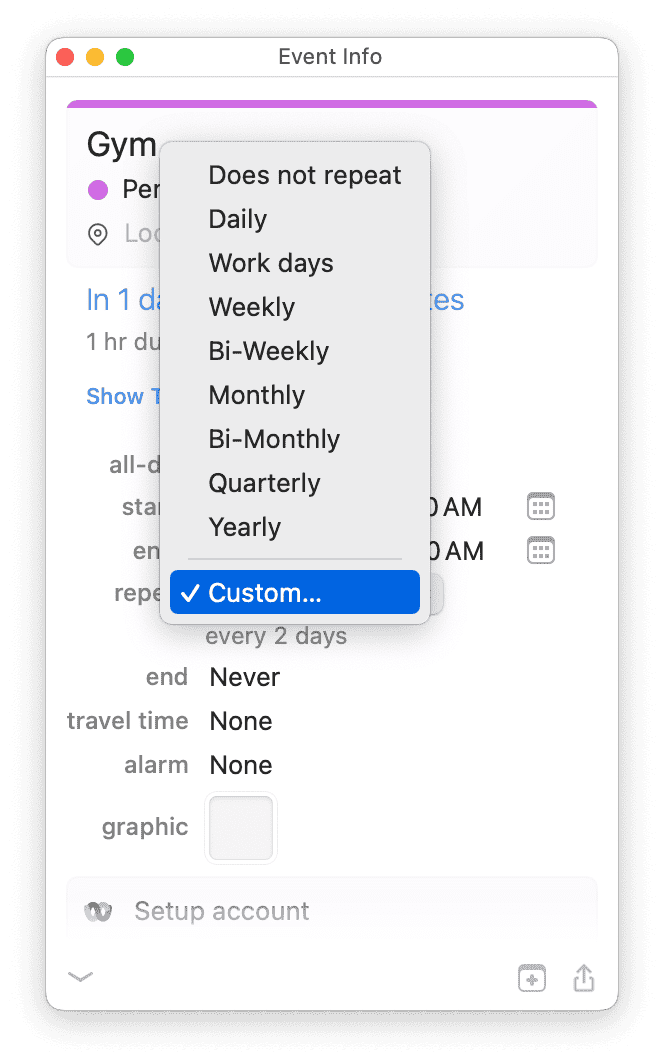
Here are some examples of custom repeat intervals.
Repeat Every Other Day

Repeat Every Other Weekday

Repeat Every Other Week on Tuesday, Wednesday, Thursday and Friday

Repeat Every Month on the 1st and 15th

Repeat Every Month on the Second Thursday

Repeat Every Month on the Last Friday

Repeat Every Month on the Last Day

Repeat Every 3 Months (Quarterly) on the 15th

Repeat Every Year on the 4th Thursday of November (Thanksgiving in the United States)
