Tags
Tags are user-defined labels with which you can categorize and color events in BusyCal. You can also search and filter events in your calendar based on tags.
Tag Types
Two different types of tags can be assigned to events in BusyCal: Tags and My Tags. They are essentially the same, i.e., you get to assign memorable keywords to events.
You should use My Tags when you want them to remain local to your Mac and thus private. My Tags do not sync to other devices and are not visible to others on shared calendars or meeting events with other attendees.
Tags sync to all your devices running BusyCal. When using the old-style Exchange Web Services (EWS) account type, Tags will map directly to Categories displayed in Outlook. On newer MS Graph-type accounts, Tags no longer map to Categories - BusyCal will display a Categories drop-down in the Info Panel that syncs with Categories in Outlook.
Also See: Automatic Tagging
Entering Tags
To apply tags to events, type them in the Tags field. When adding tags to an event, the tags are auto-completed as you type, based on tags you have entered previously.
Entering a hex color code in the tags field automatically turns it into a colored tag.

To see the Tags field on the Info Panel, you must enable it in Info Panel Preferences.
If the Tags field is missing entirely, see: Info Panel fields missing.
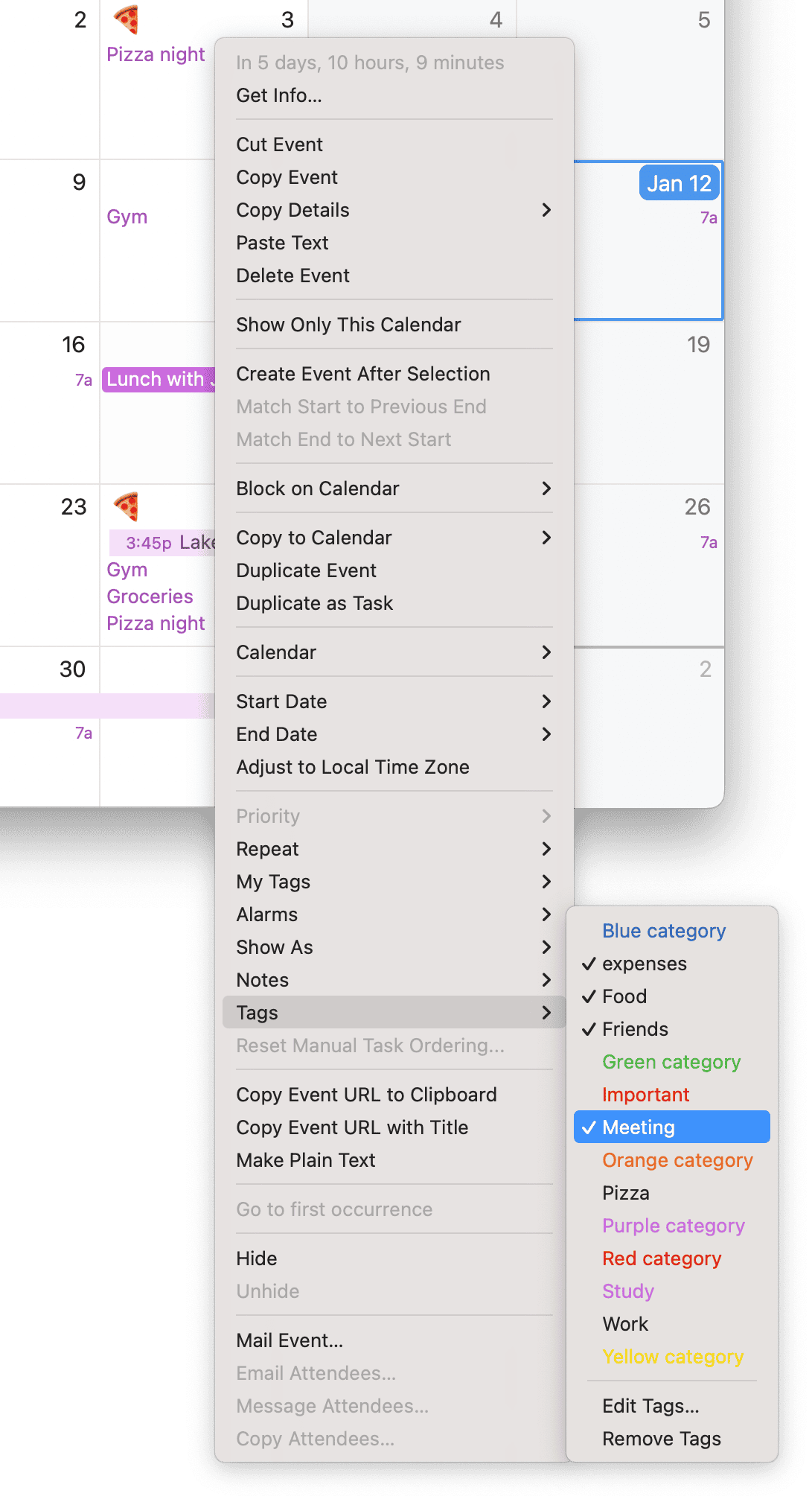
You can also apply tags to an event by Control-clicking an event and choosing a tag from the contextual menu.
Tag History
BusyCal automatically remembers tags as you create them and adds them to the Tag History. Choose Edit > Edit Tags to open the Tag History dialog, where you can add, delete, rename, and colorize tags.
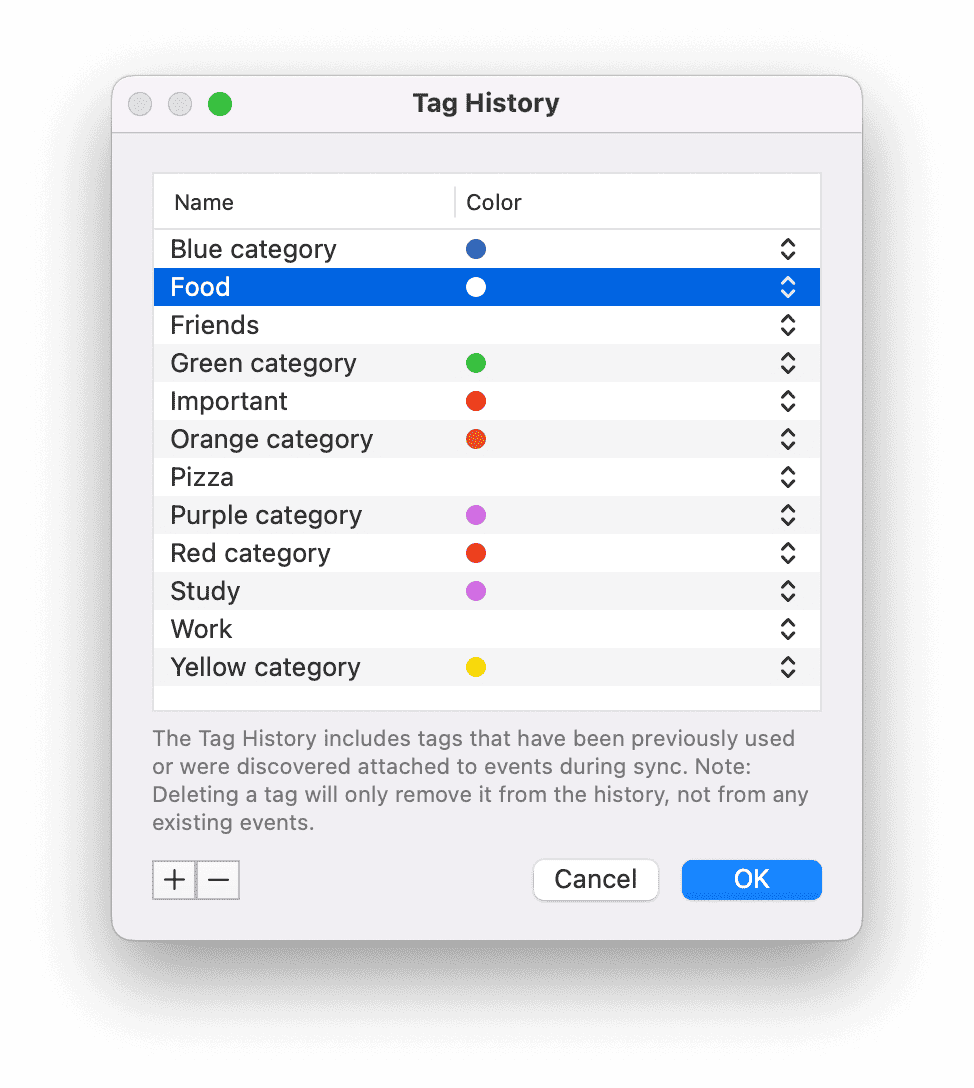
Deleting or renaming a tag in the Tag History dialog does not affect any events that already have that tag applied. However, changing the color of a tag does affect all events with that tag.
Tag Colors
You can use tags to color events. For example, you can have an “Important” tag that is colored red, and a “Family” tag that is colored green.
Normally, events appear in the same color as the calendar they’re stored on. But you can override the event color by adding a colored tag to an event. If you add multiple colored tags to an event, the color of the first tag, sorted alphabetically, is applied.
Event Colors
Events and tasks can also be colored using Color in the Info Panel.
For Google events you can edit, this picker selects the event's Google color. These color changes sync with Google Calendar. See Google Custom Color Labels below for the expanded palette available in beta.
For other calendar services, Color acts as a shortcut for assigning a colored BusyCal tag. You can switch between colors or enter a custom hex color, such as #00FF00 for green.

Tag Syncing
Tag history, along with the colors assigned to them, sync automatically with all your devices over iCloud since v2024.2.5. You can disable this behavior under Settings > Advanced.
⚠️ Troubleshooting
There are several scenarios where tags may not sync properly:
CalDAV Server Limitations
Some CalDAV servers do not support syncing extended-properties (X-PROPS) or Tags (known as CATEGORIES in CalDAV speak) which means that if you were to assign tags to events,
during sync the calendar server will remove these properties. One such CalDAV server is Zoho which seems to remove extended-properties and tags from events.
Shared Calendars
Tags may not sync properly on events in shared calendars, depending on the permissions and server configuration.
Meeting Invitations
When you send meeting invitations, tags are often stripped by the calendar server. For example, Google Calendar removes additional categories/tags from meeting invitations and doesn't expose them to invitees. This means attendees won't see any tags you've assigned to the meeting.
For a quick overview and common causes, see: Tags not syncing or missing.
Google Custom Color Labels
The beta supports Google's expanded event colors and the custom label names that Google provides. Choose an existing Google color label from Color in the Info Panel, or choose None to clear the event's Google color.
Create, rename, recolor, or delete these labels in Google Calendar. BusyCal refreshes the available choices from Google. Google color labels are separate from BusyCal Tags, My Tags, and local Color Labels; editing Tag History does not change Google's labels.
See Google Event Colors for syncing and refresh details.