
Searching, Finding, and Filtering Events

BusyCal provides two methods of searching for events: you can find all matching events throughout your entire calendar, or you can filter the current view to show only matching events within the current date range.
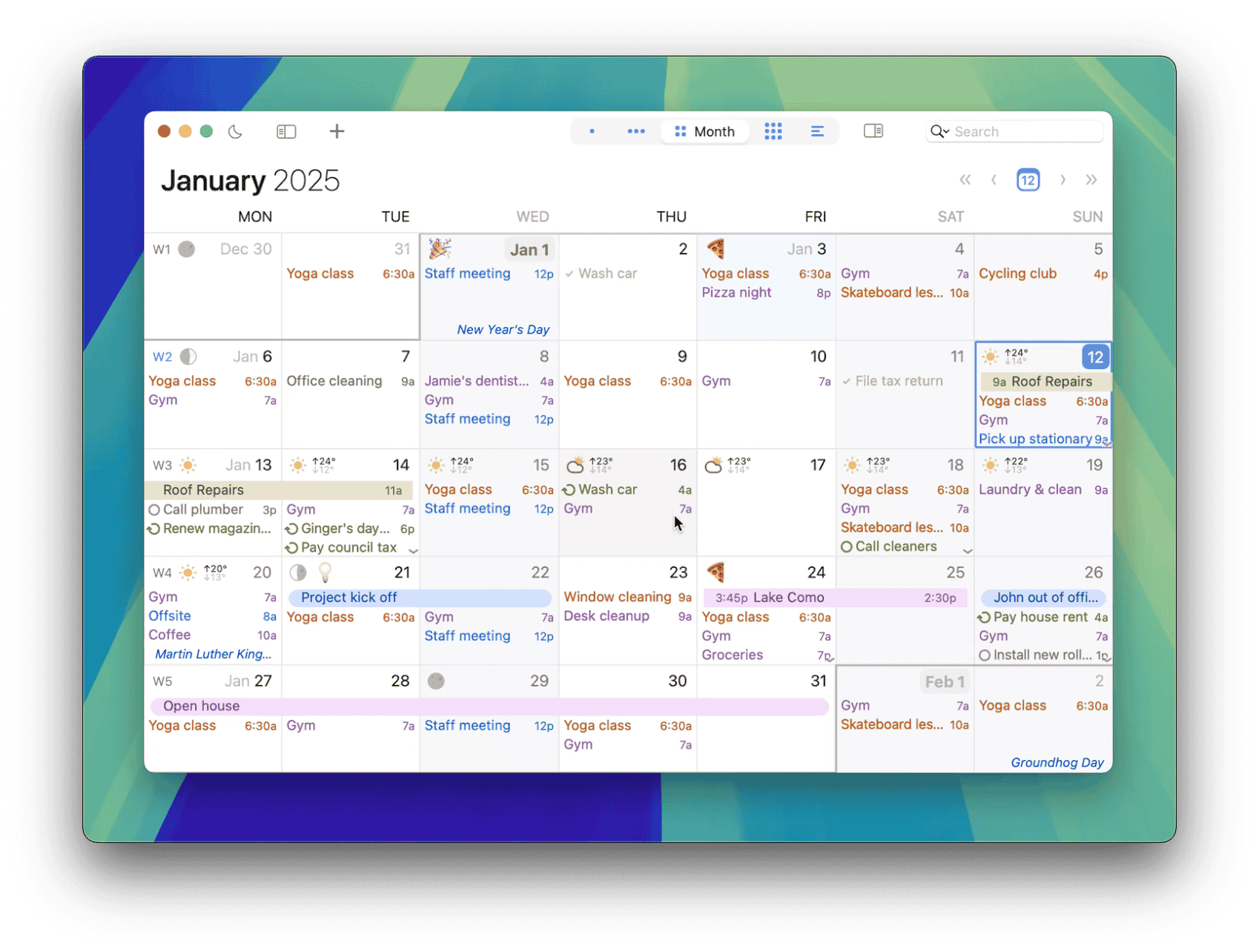
Searching for Events

To find all matching events, choose Edit > Find, press ⌘-F, or click in the Search field. Enter your search criteria to find all events whose title, location, notes, or tags match the search criteria and display them in a list. You can then select items in the list by clicking on them or using the arrow keys on the keyboard to highlight those events in your calendar, with matching events outlined using a dotted highlight in all views, including List View.

Search results for checked calendars
tip

Double-click a search result to open it in a separate floating window that stays pinned on screen. This is useful for viewing multiple events side by side — you can double-click several results to open them each in their own window. For more on floating event windows, see Get Info in a New Window.

Include Search Results from All Calendars

By default, search only looks through calendars that are currently checked in the source list. To also include unchecked calendars, click the small arrow next to the magnifying glass in the Search field and enable Include Search Results from All Calendars.

Include Search Results from All Calendars option

When enabled, search results will include events from subscribed calendars that are unchecked in the source list, giving you a broader view across all your calendars.

Search results including all calendars
Search highlight

Filtering Events

To filter the current view to display only matching events, press ⌘-Option-F or click in the Search field, click the small downward-pointing arrow next to the magnifying glass icon, and choose Filter from the pop-up menu; then type the text to search for. BusyCal searches for all events whose title, location, notes or tags match the search criteria and filters the current view to show only the matching events.
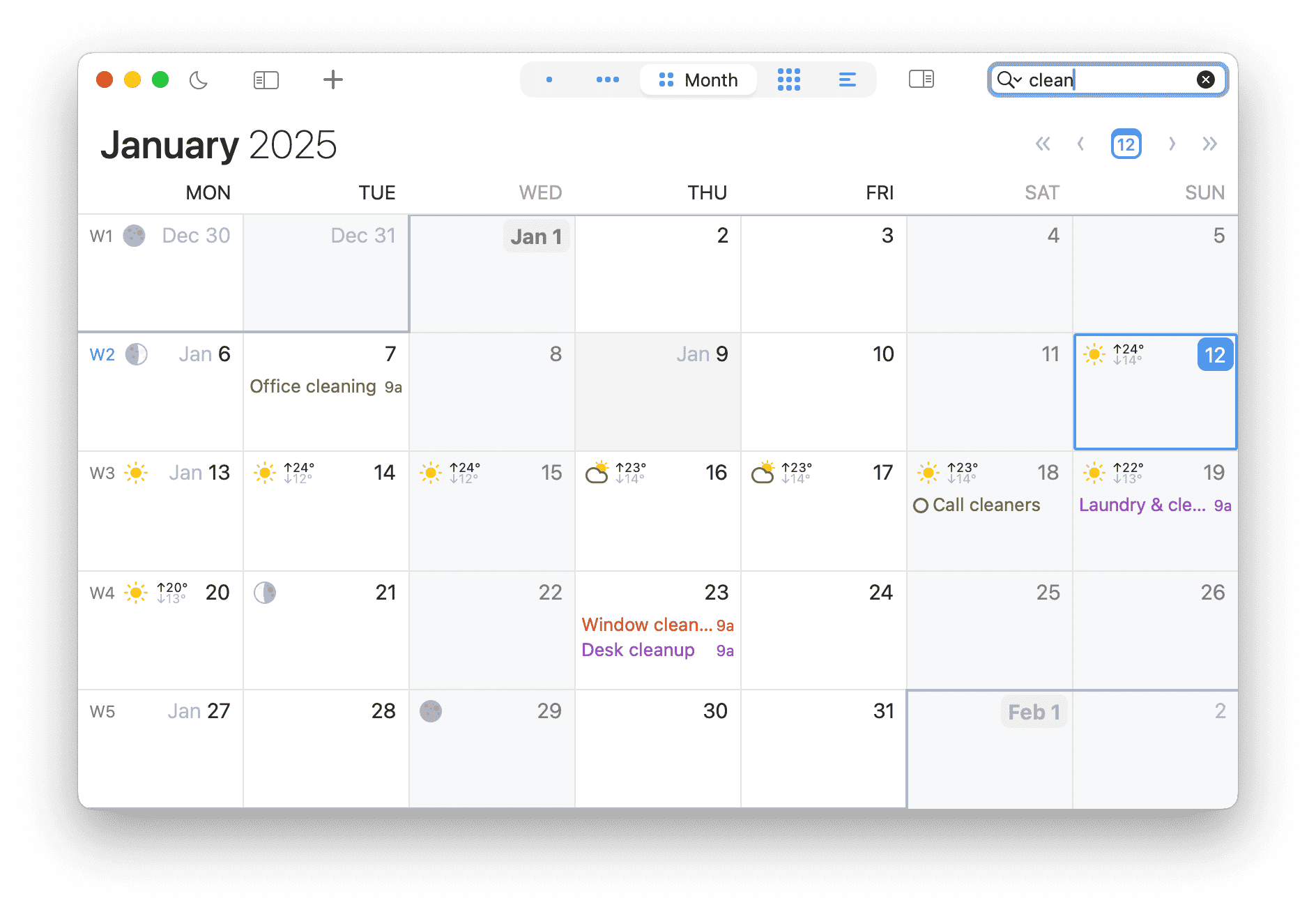
Only matching events in the current calendar date range are shown. You can then page or scroll backward or forward through the current view (Month, Week, Day) to see matching events in the past or future. You can also switch to List view and set a wider date range (like a year or a decade) to see more results.

To create reusable filters, see Smart Filters.

Filtering by Tags

BusyCal makes it easy to filter your calendar view using tags. When you assign tags to events, you can quickly filter to show only events with specific tags:

  1. Click in the Search field at the top right of the BusyCal window
  2. Click the small arrow next to the magnifying glass and select Filter
  3. Enter a hash symbol (#) followed by the tag name (e.g. #work, #personal, #important)

This instantly filters your calendar view to show only events that have the specified tag. You can combine multiple tags by separating them with spaces (e.g. #work #urgent).

Finding and Replacing Text

Searching and filtering help you locate events, but sometimes you need to change them — a recurring meeting moved to a new conference room, a client renamed their company, or a typo that snuck into dozens of recurring events. Rather than open and edit each item by hand, BusyCal's Find and Replace lets you search across many events, tasks, and journal entries at once and rewrite their text in a single pass.

To open it, choose Edit > Find and Replace… or press ⌥⇧⌘F. Find and Replace opens in its own floating window that stays on top of your calendar, so you can keep working in the calendar while it's open.

How Find and Replace Works

  1. Type the text you want to find in the Find field.
  2. Press Return (or click Find). BusyCal lists every matching item, with the matched text highlighted, just like the Search field does.
  3. Type the new text in the Replace field. As you type, the results list shows a live preview of the change (see Previewing replacements as you type below).
  4. Click Replace to update the selected item, or Replace All to update every item in the list.

Each result row shows the item's icon (colored to match its calendar), its title, the date, and an excerpt of any matching notes, location, or URL text so you can confirm a match before changing it. Recurring items are marked with a ↻ loop badge. Double-click any result to jump to that item in your calendar and select it — handy when you want to inspect an event in context before replacing.

tip

Find and Replace re-runs your search automatically as you adjust the find text, the filters, or the date range — so the list always reflects your current criteria without clicking Find again.

Narrowing What You Search

Above the results list is a set of filters that control exactly what Find and Replace looks through. Tightening these is the best way to make sure a Replace All only touches the items you intend.

  • Match mode — the pop-up next to the Find field controls how your text is matched: Contains (anywhere in the field), Whole Word, Starts With, or Ends With.
  • Aa (Match Case) — toggle the Aa button on to require an exact upper/lowercase match.
  • In — choose Selected Calendars (the calendars currently checked in your source list) or All Calendars (all writable calendars, including ones that are unchecked).
  • Between — set the start and end dates of the range to search. Only items within this range are included, which keeps a broad rename from reaching far into the past or future.
  • Include — choose which kinds of items to search: Events, Tasks, Journals, and Undated tasks. There's also a Completed tasks checkbox so you can include or skip tasks you've already finished.
  • Match — choose which fields to search within each item: Title, Notes, Location, and URL. For example, unchecking everything except Location lets you update a meeting room across many events without risking changes to titles or notes.

Previewing Replacements as You Type

The most useful part of Find and Replace is that it shows you exactly what your edit will look like before you commit to it. While the Replace field has focus and contains text, every row in the results list swaps its highlighted matches for your replacement text, rendered in the accent color and underlined. This live preview updates with every keystroke, so you can see at a glance how a rename reads across all your events and catch a mistake — a doubled word, the wrong capitalization, a missing space — before changing a single item.

To leave preview mode and go back to seeing the original highlighted matches, simply click back in the Find field (or anywhere outside the Replace field). The list returns to showing your matches as they are now. Nothing is changed until you actually click Replace or Replace All.

tip

The preview is purely visual — it never modifies your data. Use it freely to experiment with different replacement text until the results read the way you want.

Replacing Matches

Once the preview looks right, you have two ways to apply the change:

  • Replace updates the currently selected row. After it's replaced, that row drops out of the list and the selection moves to the next match, so you can step through items one at a time.
  • Replace All updates every item currently in the list in a single, undoable operation.

As items are replaced they animate out of the list, and the status bar at the bottom keeps a running tally — how many items matched, how many were replaced, and how many were skipped or failed. The whole operation is registered as a single Find and Replace entry in the Edit menu, so a ⌘-Z undoes the entire batch at once.

For recurring events, Find and Replace edits the entire series — it updates the underlying recurring item rather than detaching a single occurrence — so a rename stays consistent across every instance.

What Find and Replace Will and Won't Change

Find and Replace is deliberately careful about which calendars it can touch. It only searches and edits calendars you can write to. Read-only calendars, subscribed calendars, view-only shared calendars, and holiday calendars are excluded entirely and are never modified — you can click the ? help button at the bottom of the window for a reminder of this.

A few other things to keep in mind:

  • The replacement text must be different from the find text, and the Replace buttons stay disabled until you've run a search that returns at least one result.
  • If an item changes or is completed in the background after you've searched, Find and Replace re-checks it at the moment you replace and safely skips it if it no longer qualifies — reporting it in the skipped count rather than making an unexpected edit.
  • Closing the Find and Replace window clears the search text and results, but remembers its size and position for next time.