Date Picker
Available in BusyCal version 2026.2.1 or later
BusyCal's date picker goes far beyond a traditional calendar picker. Instead of clicking through months to find the right date, you can simply type what you mean — like tomorrow morning, next fri, or w19 — and BusyCal instantly suggests matching dates for you to choose from.
The date picker appears in the starts and ends fields of the Info Panel. Just click a date field and start typing. As you type, a dropdown of smart suggestions appears, ranked by relevance. Select a suggestion to apply it.
Selecting a Suggestion
As you type, a dropdown of suggestions appears. There are three ways to confirm your choice:
- Click a suggestion to apply it immediately.
- Arrow-key and Return — use the Up/Down arrow keys to highlight a suggestion, then press Return to apply it.
- Tab out — pressing Tab moves focus to the next field. If your input matches exactly one suggestion, that suggestion is applied automatically. If there are multiple suggestions (for example, typing
11could mean the 11th of this month, 11:00 AM, or in 11 days), tabbing out leaves the field unchanged so you can go back and pick the one you intended.
As a general rule, if the dropdown is showing a single suggestion or you've highlighted the one you want, pressing Return is the most reliable way to confirm it.
Using the Calendar Picker
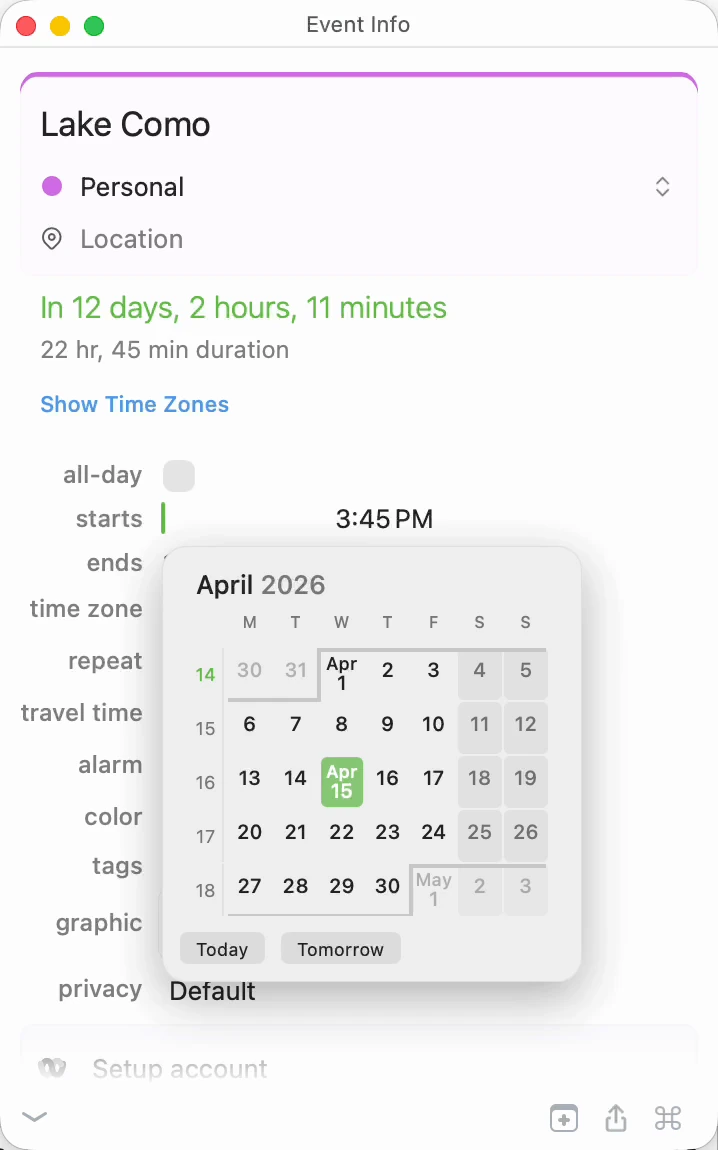
The date field is flexible — you can either click to pick a date visually from the calendar picker, or start typing to enter any date using natural language.
Clicking the date field reveals a mini calendar picker. The widget highlights the event's current date and lets you navigate between months. Quick buttons for Today and Tomorrow are available at the bottom. Non-working days (such as weekends) are shaded based on your Working Days setting in BusyCal > Settings > General. If you have week numbers enabled in your app settings, they also appear along the left edge of the calendar picker.
The calendar picker also supports keyboard navigation. Press the Down Arrow key first to enter the calendar grid, then use the Left and Right Arrow keys to move between days. (Pressing Left/Right without first pressing Down moves the cursor within the text field instead.)

Relative Dates
One of the fastest ways to set a date is by typing a relative expression. BusyCal understands a wide range of natural language terms:
- today — Sets the date to today.
- tomorrow — Sets the date to tomorrow.
- yesterday — Sets the date to yesterday.
- day after tomorrow — Two days from now.
- day before yesterday — Two days ago.
- tom mor (tomorrow morning) — Combines a relative day with a time of day. BusyCal suggests tomorrow at 9:00 AM.

You can also use time-of-day keywords in combination with a day: morning (9:00 AM), afternoon (1:00 PM), evening (7:00 PM), night (9:00 PM), noon (12:00 PM), and midnight (12:00 AM).
For broader jumps, you can type this month, next month, this year, or next year to jump to the start of that period.
Day Names
Type a day name — or just the first few letters — to jump to that day. BusyCal shows upcoming occurrences so you can pick the right one.
- sun — Shows the next few upcoming Sundays.
- this thur — Shows this Thursday (even if it's in the past for the current week).
- next fri — Shows the next Friday and a few more after it.


Month and Date Combinations
Type a month name (or abbreviation) with an optional day number to jump to a specific date. BusyCal shows multiple years of matches so you can pick the one you need.
- april 19 — Suggests April 19 of the current year, next year, and beyond.
- dec fri — Shows all Fridays in December.
- sun jun — Shows all Sundays in June.

Month-Weekday Combinations
Type a weekday and a month — like fri jun or dec fri — and BusyCal instantly lists all occurrences of that weekday within the month. This is a quick way to find the right date when you know the day of the week but not the exact number. You can optionally add a year (e.g., fri jun 2027) to narrow the results to a specific year.


Plain Numbers
Typing a plain number is surprisingly versatile. BusyCal interprets it in multiple ways and shows all possibilities:
- As a time — e.g.,
18suggests 6:00 PM today and tomorrow. - As a day of the month — e.g.,
18suggests the 18th of the current or next month. - As a relative offset — e.g.,
18suggests "in 18 days."

Compact Date Shortcuts
You can combine numbers with a month letter for quick date entry. The letter acts as a month abbreviation (e.g., d for December, j for January) and can go before or after the number:
- 18d — December 18.
- d25 — December 25.
- 18d 2028 — December 18, 2028.

Week Numbers
If you work with ISO week numbers, you can type w followed by a number to jump directly to the start of that week.
- w19 — Jumps to the Monday of week 19.
- w52 — Jumps to the Monday of week 52.


Localized week number prefixes are also supported, such as KW (German), S (French/Spanish), sem (Portuguese), and others.
Time Input
The date picker also works in the time field. You can type a time in several formats and BusyCal will suggest the matching time.
Scrollable Time List
Clicking the time field shows a scrollable list of times in 15-minute increments, with the current time highlighted. You can scroll to quickly pick a time.

Typing a Time
You can also type a time directly. BusyCal understands multiple formats:
- 742 — Suggests 7:42 AM and 7:42 PM.
- 2pm — Suggests 2:00 PM on upcoming days.
- 9p45 — Suggests 9:45 PM (AM/PM markers can appear in the middle).
- 14:30 — Suggests 2:30 PM using 24-hour format.
- 1630 — Suggests 4:30 PM (24-hour compact format, no colon needed).
- 21 — Suggests 9:00 PM.

Combined Date and Time
You can type a date and time together in the date field for quick entry:
- 2pm — Suggests tomorrow at 2:00 PM (or the next upcoming day at that time).
- 2nd april 8:30a — April 2 at 8:30 AM.
- wed 8:30a — Next Wednesday at 8:30 AM.
- tomorrow 3pm — Tomorrow at 3:00 PM.
- next fri 14:30 — Next Friday at 2:30 PM.
- april 19 2pm — April 19 at 2:00 PM.
- tomorrow 1630 — Tomorrow at 4:30 PM.

End Time Suggestions
The end time field is equally smart. When you type a time there, BusyCal shows the resulting event duration alongside each suggestion, making it easy to set the right end time.

Additional Supported Formats
Beyond the examples shown above, BusyCal's date picker supports many more input patterns:
- Relative offsets —
in 3 days,in 2 weeks,in 2w,3 weeks ago,next month - Offsets with time —
in 3 days 9am,next week evening - Exact dates —
12/25/2026,12-25-26,2026/12/25(respects your system's date format — M/D or D/M) - Compact no-space input —
19jan800(January 19 at 8:00 AM),jan19(January 19) - Period intents —
weekend,eod(end of day),eow(end of week),eom(end of month) - Ordinals —
7th(suggests future occurrences of the 7th of each month) - Now — Sets the date and time to right now
You don't need to type full words. BusyCal matches on partial input — typing just t shows Today, Tomorrow, Tuesday, and Thursday (all days starting with T), and typing tom narrows it down to Tomorrow.
See Also
- Info Panel - Where the date picker fields are located
- Quick Entry - Create events quickly using natural language
- Quick Edits - Edit events directly in the calendar view
- Time Zones - Working with multiple time zones
- Date and Time Format - Configure how dates and times are displayed