Calendar Views
BusyCal provides several views for displaying your calendar: List View, Day view, Week view, Month view, Year view, and Task List.
Tap a view name at the bottom of the screen to change the view. On iPad, all views are always available. On iPhone, the Year View tab appears only in landscape orientation.
In any view, you can scroll to earlier or later time periods by swiping. To return to a view that shows the current day, tap the calendar icon in the lower-left corner of the screen with today’s date, or tap twice on any of the view tabs. On an iPhone, the toolbar appears only in portrait orientation.
Tap an event on the calendar to see its details (see Event Details).
Day View
Day view displays a single day of your calendar.

While in Day view, you can scroll backward or forward one day at a time by swiping left or right. You can also zoom in or out on your day by pinching.
Week View
Week view displays one week of your calendar by default (with the option to redefine “week” as any period from 2–7 days).
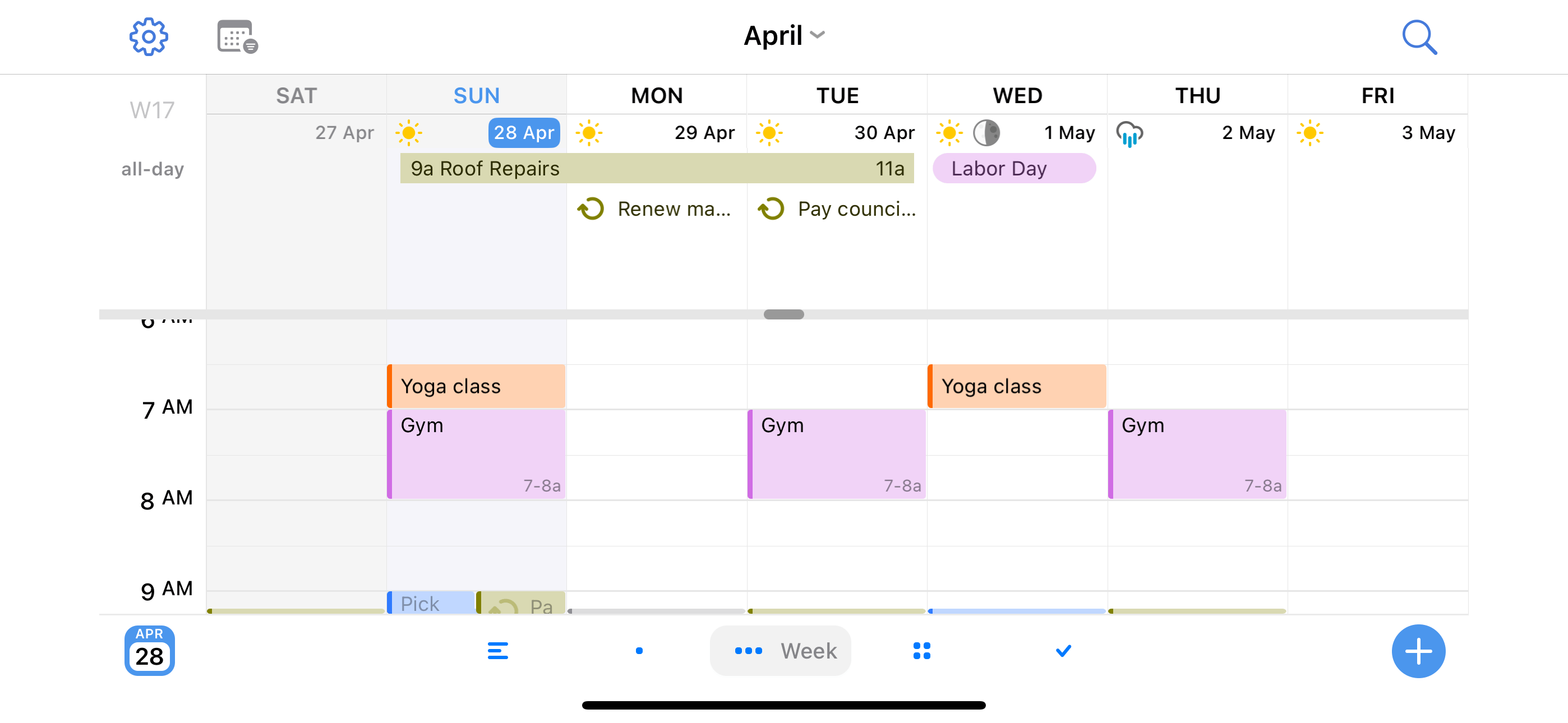
While in Week view, you can scroll backward or forward by swiping left or right. You can adjust the number of days shown by pinching horizontally, and the number of hours shown by pinching vertically. You can also change the default number of days shown per week in Settings > View Settings > Days in Week View.
Month View
Month view displays one month of your calendar by default (with the option to redefine “month” as any period from 2–8 weeks).
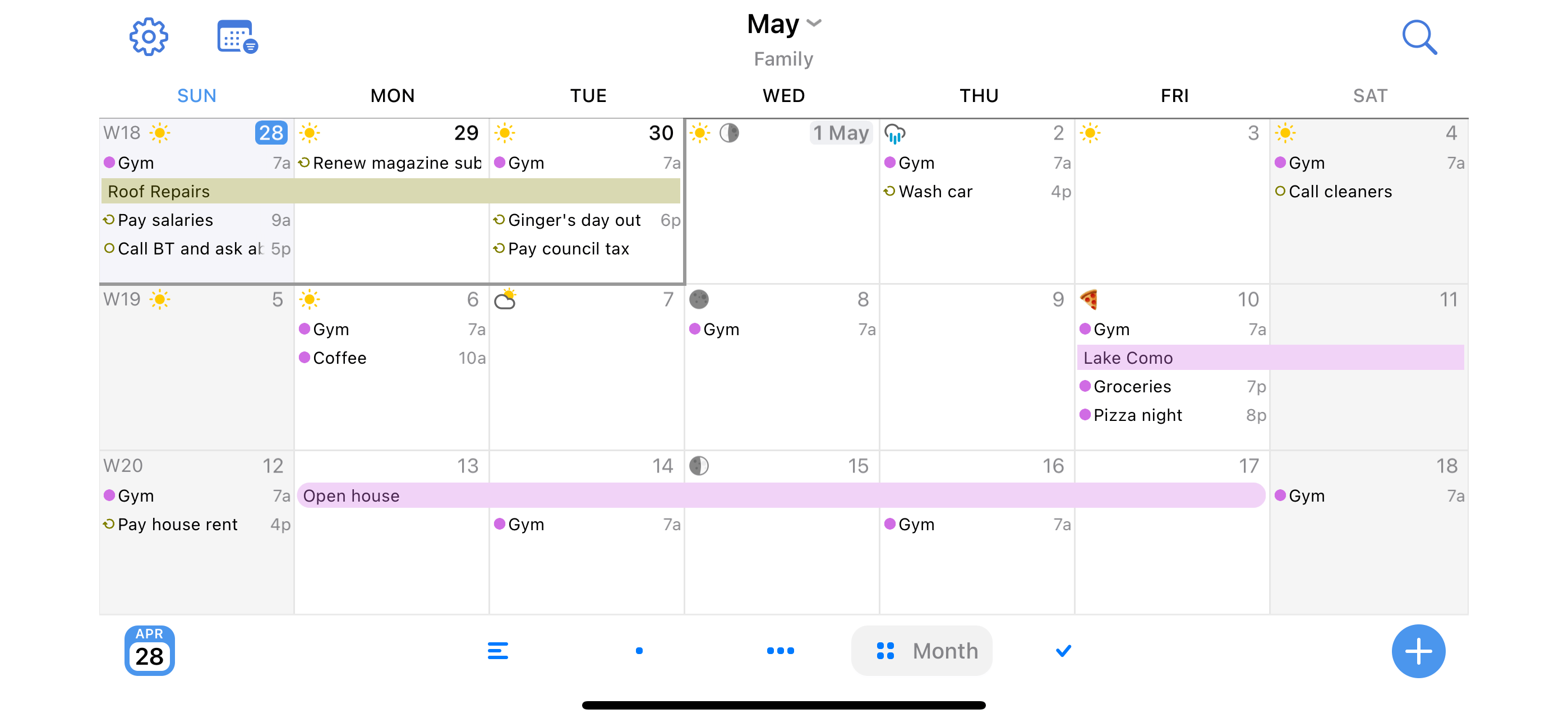
While in Month view, you can scroll backward or forward by swiping down or up. You can adjust the number of weeks shown by pinching vertically. You can also change the number of weeks shown per month in Settings > View Settings > Weeks in Month View.
Since the display of individual events in this view might be quite small, you can tap a day to display an accordion with all that day’s individual events; tap an event in the accordion to see its details.
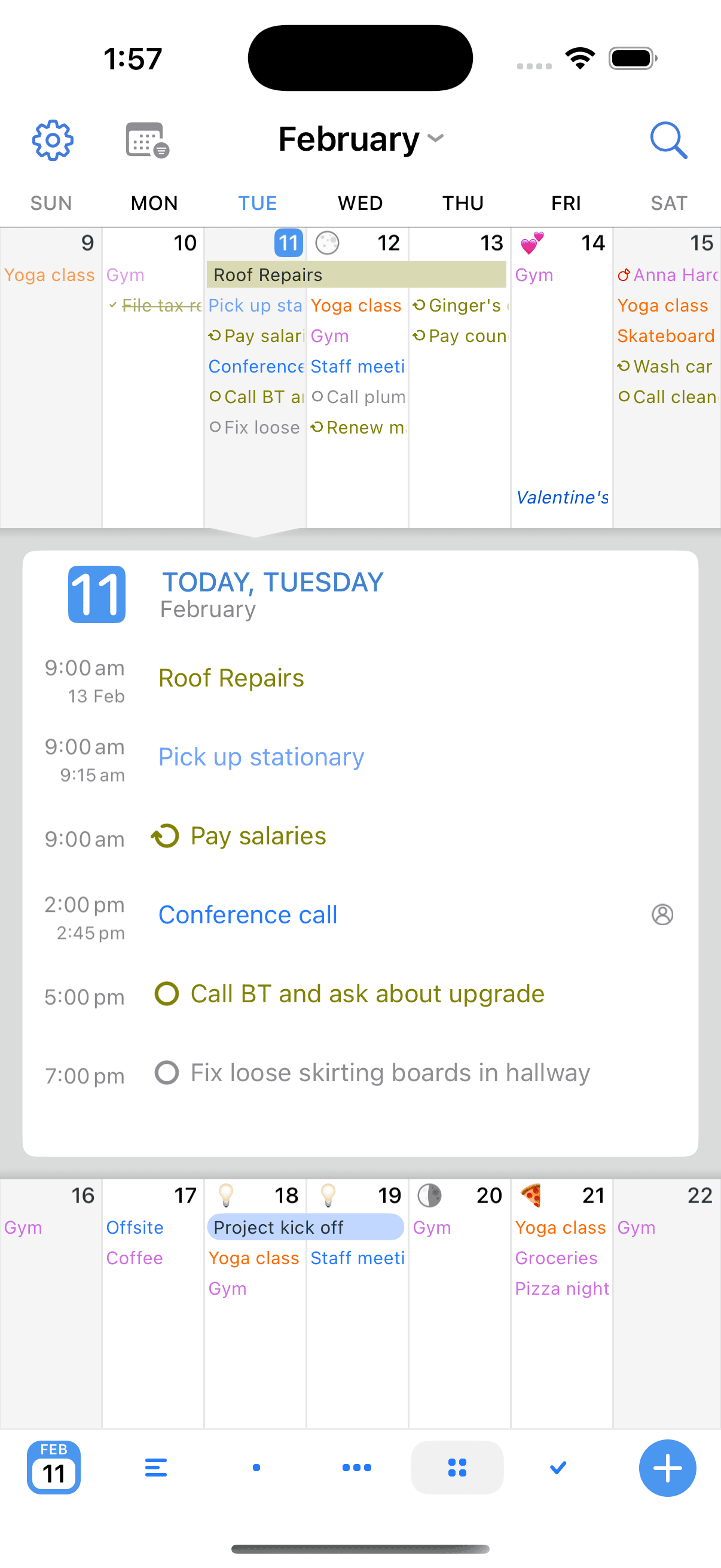
Pinch to zoom-in or out of the month view in order to show more or fewer number of weeks per month. Tap on the month-view navigation button at the bottom of the screen a second time to scroll back to Today. Tap on any day to reveal an expanded List View.
Holiday calendars use a special Month view layout: their all-day events appear italicized and pinned to the bottom of the day cell, rather than as regular all-day banners. This is why a subscribed holiday calendar (like Google's "Holidays in United States") shows its title in the lower portion of the date box, and why the Date and Time alignment settings don't move it. To display such a calendar's events like normal all-day events, turn off Show as holiday calendar in its calendar details.
List View
List view displays all your events in a scrolling list format.

Unlike the List view in the Mac version of BusyCal, List view in BusyCal for iOS is not customizable, with the sole exception that you can turn "Show Notes in List View" on or off in Settings > View Settings. When this is turned on, any text in the Notes field appears underneath the title of the event or task in the list.
Year View
Year View provides a year-at-a-glance overview of your calendar in a planner-style layout, with each month displayed as a horizontal row. This makes it easy to scan patterns, spot busy periods, and plan ahead across the entire year.
On iPad, Year View is always available as a tab. On iPhone, rotate your device to landscape orientation to reveal the Year View tab.
To line up the days of the week down the year, tap the ⋯ menu at the top of Year View and turn on Align Weekdays Across Months. Each month then shifts to start under its own day of the week, so weekends form stripes you can follow from January to December and any weekday is easy to spot at a glance. Each row still shows only that month’s days, so the left and right edges are uneven. This option is off by default, works with both display styles, and follows your start-of-week setting.
Display Styles
Year View supports two display styles, which you can switch between using the menu button:
- Banners — Shows multi-day events as colored bars spanning across their dates, making it easy to see what's booked at a glance.
- Heatmap — Shades each day based on how busy it is, using a color gradient from light (fewer events) to dark (more events). This is great for spotting busy vs. quiet periods across the year.
Visual Indicators
Year View displays special icons for Birthdays, Anniversaries, and Journal entries so they stand out even in this compact view. Tasks are shown with status indicators (completed, in-progress, or overdue), and regular timed events appear as small colored dots matching their calendar color.
Navigation
Scroll vertically to move through the months. Tap any day to expand an agenda drawer below that month showing all of that day's events. Tap the day again to close it. Tap a month label on the left side to jump directly to Month View for that month. Long-press on a day to create a new event.
Highlights
Year View can display a Highlights section showing top statistics for the year, such as:
- Total event and task counts
- Most active month and day
- Top calendars and tags
- Meeting statistics and response breakdowns
- Task completion rates
- Time distribution showing your busiest hours
On iPad, the Highlights appear as an inline drawer at the bottom of the Year View. On iPhone, Highlights appear as a modal sheet overlay.