Using BusyCal iOS with Google Calendar
Google Calendar is a free service for Google users that lets you sync and share calendars. BusyCal for iOS can connect to Google Calendar, using it to sync calendars across your iPhone and iPad devices.
Syncing with Google Calendar
BusyCal can use Google Calendar to sync calendar data across your iOS devices.
BusyCal supports multiple Google accounts of the same type. Add each Google account separately in Settings > Accounts to view calendars from multiple Google accounts side by side.
How Google Syncing Works
Google Calendar provides CalDAV access for calendar sync.
BusyCal (for both iOS and Mac) and the built-in Calendar app on iOS and macOS are CalDAV clients that sync with Google.
BusyCal syncs Google Task Lists directly using Google Tasks APIs (not CalDAV Tasks).
Calendars hosted on Google can sync between BusyCal and other apps connected to the same Google account. Each app displays the Google features it supports. See Google Event Colors for details about color syncing.
BusyCal also syncs with Google Tasks directly. However Google Tasks do have some limitations when it comes to syncing with third-party apps, as not all details sync back and forth. Learn more here.
Connecting to Google
To add your Google account to BusyCal for iOS:
- Open BusyCal and tap the gear icon in the upper-left corner to open Settings.
- Tap Accounts.
- Tap Add Account…. It is the first row at the top of the Accounts screen.
- On the Add Account screen, find the Google row and tap the Connect button on its right side. Tapping the row itself does nothing; only the Connect button starts the setup.
- Enter your Google email address and tap Add in the upper-right corner.
- BusyCal asks for permission to use google.com to sign in. Tap Continue.
- Sign in to Google. Choose your account or enter your Google email address and password. If your account uses two-step verification, complete that step too.
- On Google's permissions screen, allow everything BusyCal asks for. If the screen shows checkboxes, scroll down and turn on every one of them (or tap Select all), then tap Continue.
Your Google account now appears under Active on the Accounts screen and BusyCal begins syncing.
If BusyCal shows a message saying you are already connected to Google with that email address, the account has already been added on this device. Look for it under Disabled or Added on Another Device on the Accounts screen and tap it to enable it or use it, rather than adding it again.
Syncing with iCloud and Google Calendar
BusyCal can sync with both iCloud and Google Calendar. But you cannot sync iCloud calendars with Google Calendar or vice versa.
Instead, you can host some calendars on iCloud and some on Google, and configure BusyCal to sync with both services.
- If you want to share calendars with other iCloud users, you must host the calendars on iCloud.
- If you want to share calendars with other Google users, you must host the calendars on Google.
- If you want to sync a Mac with iCloud or Google, see Syncing BusyCal for iOS with a Mac.
Hosting Calendars on Google
Google Calendar provides CalDAV access for calendar sync. BusyCal and the built-in Calendar app on iOS and macOS sync Google calendars through CalDAV.
BusyCal syncs Google Task Lists directly using Google Tasks APIs (not CalDAV Tasks).
Calendars hosted on Google can sync between BusyCal and other apps connected to the same Google account. Each app displays the Google features it supports.
Calendars Must Be Hosted on Google Calendar
All calendars you want to sync between your iOS devices, Macs, and other users must be hosted on Google Calendar. You cannot sync calendars from other sources (iCloud, Exchange, etc.) to Google.
Sharing Calendars with Others through Google
Google Calendar enables you to share calendars with other Google users. Once each user has configured BusyCal to sync with their personal Google account, you can share calendars with each other through Google. When a calendar is shared through Google, events can be edited by any user and changes sync between them.
However, you cannot set up a shared calendar within BusyCal for iOS; you must set this up using BusyCal for Mac (or another Google Calendar client). For details, see Sharing Calendars with Others through Google in the BusyCal for Mac help.
Notifications of Changes to Shared Calendars
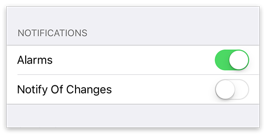
When sharing calendars with others, you can choose whether changes to that calendar made by other people appear in your Inbox. To do so, go to Settings > Calendars and tap the "i" icon next to the calendar name. Then turn Notify Of Changes on or off.
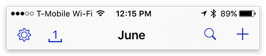
Tap the Inbox (next to the gear icon) to display your notifications.
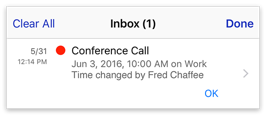
Tap OK to dismiss each message in the Inbox. Or, tap Clear All to dismiss all messages with a single tap.
Google Event Colors
Support for Google's expanded event palette and custom color labels is currently being tested in beta. Earlier BusyCal versions support Google's standard event colors.
BusyCal displays the event colors and label names that Google provides for each calendar. For an event you can edit, tap Color in Event Details and choose a color. Choose None to clear the event's Google color. If the field is hidden, enable Show Color under Settings > View Preferences > Event Details.
If Google does not provide a name, BusyCal shows a localized color description. These display names do not rename Google's labels.
Event color changes sync between BusyCal and Google Calendar in both directions. Existing Google color assignments are preserved, although a shade may update to match Google's current color definition.
Create, rename, recolor, or delete Google color labels in Google Calendar. BusyCal lets you choose an existing label for an event; it does not edit Google's label definitions. Available labels depend on the event's Google calendar.
Label names and palette changes are refreshed periodically. After changing them in Google Calendar, open Settings in BusyCal and tap Sync Now to check for updates immediately.
Google color labels are separate from BusyCal Tags and local Color Labels. A BusyCal Color Label or colored tag can still affect the event's appearance after its Google color is cleared. Those BusyCal features do not create or rename Google color labels. See Tags and event colors.
Google Limitations
Google places certain limits on calendar data, which may affect how you use BusyCal or which service you choose for syncing calendars.
The following limitations exist when syncing BusyCal with Google Calendar.
Calendar Limitations
-
Syncing Google Task Lists is supported; however, only the following task properties sync with Google: title, due date, and notes. Unfortunately, Google does not allow third-party apps to sync additional properties such as due times, recurrence, alarms, or priorities.
-
BusyCal, however, lets you set due times, durations, and other properties, and these will sync across your devices running BusyCal via our Extended Sync implementation.
-
Keep in mind that these extended properties will not appear in Google Calendar itself due to its current limitations.
-
Separate timezones cannot be set for start / end dates from BusyCal. Use Google Calendar to enable this per event manually.
-
Graphics are not supported.
-
URLs do not sync by Google Calendar so this field is hidden within BusyCal.
-
Attachments are not supported.
-
Journals and Stickies sync between BusyCal clients through Google, but they do not appear on Google Calendar in a web browser.
-
You cannot create new calendars from within BusyCal. You must create calendars on Google.
-
Floating Time events are not supported and may appear hours early or late in Google Calendar. See how to prevent and correct Floating Time differences.
-
Google event colors and label names sync as described in Google Event Colors. Create or change the label definitions in Google Calendar; BusyCal's Tags and local Color Labels are separate.
For protocol details, see Google Calendar CalDAV guide and Google Tasks API reference.
Alarms
- Email alarms are delivered by Google and not by BusyCal. This prevents duplicate email alarms from being delivered by both Google and BusyCal.
- SMS alarms are not supported.
Meetings
- For best results, you should create meetings on your primary Google calendar. This will ensure that the meeting invitations are delivered to attendees by Google and that the attendee responses are properly received and processed by Google.
- Attendees cannot add meeting invitations to secondary Google calendars. You can add and accept meeting invitations only on your primary Google calendar.
- Meeting invitations will not be delivered to attendees if you create the meeting in BusyCal on a secondary Google calendar. If you want to invite attendees to a meeting on a secondary Google calendar, you must create the meeting on Google Calendar in your web browser.
- If an attendee receives a meeting invitation via email addressed to their non-Google email address and adds the meeting to their Google primary calendar, the attendee email address in the meeting reply is changed to their Google email address and the meeting reply is sent to the organizer from Google using the attendee's Google email address. Since the attendee email address in the reply does not match the original attendee email address, the attendee's status will probably not be recognized and updated by the organizer.
⚠️ Troubleshooting
If your Google Calendar account won't sync or connect to BusyCal for iOS, there are several common causes and solutions to resolve these synchronization issues.
Verify System Date & Time Settings
Google Calendar authentication will fail if your device's date and time don't match the actual current time. This is a security requirement that prevents connection issues:
- Open Settings > General > Date & Time on your iOS device
- Ensure Set Automatically is enabled
- If the setting is already enabled, try disabling and re-enabling it to force a time sync
- Close and reopen BusyCal, then attempt to reconnect your Google account
Fix Missing or Insufficient Permissions
Google Calendar sync failures often occur when BusyCal doesn't have the required permissions to access your calendar data. BusyCal needs full read/write access to function as a complete calendar replacement.
To resolve permission issues:
-
Remove the existing account:
- Open BusyCal > Settings > Accounts
- Tap your Google account in the list
- Tap Delete Account and confirm the removal
-
Re-add the account with correct permissions:
- Tap Add Account… at the top of the Accounts screen
- Tap the Connect button on the right side of the Google row
- Enter your Google email address, tap Add, then tap Continue and sign in to Google
-
Grant all required permissions:
- When Google's permissions screen appears, turn on every checkbox it shows, or tap Select all
- Do not leave any permission unchecked, as this will break the sync functionality
- Tap Continue to finish signing in
Critical: You must grant ALL permissions when prompted by Google. Unchecking any permission will prevent BusyCal from syncing properly with your Google Calendar.
Additional Troubleshooting Steps
For Google Workspace (GSuite) accounts:
- Contact your administrator to ensure third-party apps are not blocked
- Verify BusyCal is allowed in Google Workspace app access controls and calendar/task scopes are not restricted by policy
For persistent connection issues:
- Clear Safari cache: Settings > Safari > Clear History and Website Data
- Try using a different network connection (switch from Wi-Fi to cellular or vice versa)
- Ensure your internet connection is stable during the authentication process
- Restart your iOS device and try reconnecting
If sync continues to fail:
- Check Google's service status at status.google.com
- Wait 15-30 minutes and try reconnecting, as Google may temporarily rate-limit connections
- Try removing and reinstalling BusyCal for iOS if the issue persists
- Ensure you're running the latest version of BusyCal from the App Store