Date and Time Options
BusyCal displays dates and times based on what you have specified in the main iOS System Settings app in General > Date & Time.
24-Hour Time
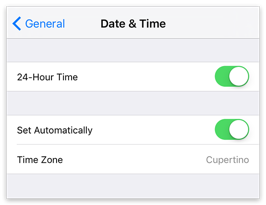
To display 24-hour time in a region where it is not the default (e.g., the United States), open the main iOS System Settings app, tap General > Date & Time, and turn 24-Hour Time on.
Time Zones
By default, BusyCal schedules a new timed event in the app's active time zone when you do not specify another zone. You can assign a different zone to an individual event either by including it in natural-language entry or by choosing it in the event editor. BusyCal stores the assigned zone and shows the corresponding local time when you view the calendar from another zone.
For example, if you live in New York and your time zone settings in Settings > General > Date & Time are set to US/Eastern time, when you create a “Dinner Meeting” at 6:00 PM, it is scheduled in your local time of 6:00 PM Eastern time. If you travel to California and change your time zone settings in Settings > General > Date & Time to US/Pacific time, the “Dinner Meeting” appears in your calendar at 3:00 PM, because 6:00 PM Eastern time is 3:00 PM Pacific time.
Creating an Event in Another Time Zone
When creating an event with natural language, type the zone after its time. BusyCal recognises abbreviations and IANA identifiers, plus the common U.S. names Eastern, Central, Mountain, Pacific, Alaska, and Hawaii in English. You can also add the word Time.
Client meeting next Monday at 9:45 Eastern
See Natural Language Input for more examples, including events with different start and end zones.
To choose a zone from a menu:
- Open Settings > View Preferences > Event Details and enable Show Start Time Zone.
- Create or edit the event in the full event editor, then tap Start Time Zone and select the zone.
Compact natural-language entry hides the individual time-zone menus. You can type the zone inline or tap Show Details to open the full editor. Enable Show End Time Zone only when an event ends in a different zone, such as a flight. Favorite Time Zones adds shortcuts to the picker; it does not display the Start Time Zone field by itself.
The following options control how events appear when your device's active time zone changes. They are separate from assigning a zone to an individual event:
- Option 1: Enable Time Zone Override in BusyCal
- Option 2: Disable Automatic Time Zone Switching in Settings
- Option 3: Schedule Events In Floating Time
Each option is described below.
Option 1: Enable Time Zone Override in BusyCal
BusyCal gives you the option to dynamically display all the events in your calendar in a different time zone from the one configured in the main iOS System Settings app. This is useful when traveling between different time zones. It enables your iOS device’s system clock to be set to a new time zone, while BusyCal continues to display events in your home time zone.
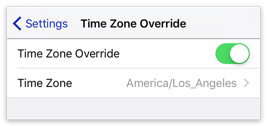
To force BusyCal to use a specific time zone regardless of your location, open BusyCal, turn on Settings > Time Zone Override, and select a time zone. (If you also use BusyCal for Mac, this should match the time zone you use there.)
This setting is independent of the similar feature the iOS Calendar app uses, which is configured in iOS Settings > Apps > Calendar > Time Zone Override.
Option 2: Disable Automatic Time Zone Switching in Settings
Your time zone is set in the main iOS System Settings app > General > Date & Time. By default, your iOS device sets its time zone automatically using Location Services. Therefore, when you travel, your time zone settings may change without being aware of it. If your time zone settings in Settings change, all the events in your calendar shift to reflect the new time zone. For example, if your home time zone is US/Eastern time, and your time zone settings are changed to US/Pacific time, all the events in your calendar are displayed 3 hours earlier.
You can avoid this time shifting by disabling the automatic Time Zone setting in Settings, as follows:
- In the main iOS System Settings app, go to General > Date & Time.
- Turn off “Set Automatically.”
- Tap Time Zone.
- Enter a city in your current time zone, and then tap the matching city in the list below.
Option 3: Schedule Events in Floating Time
As an alternative to scheduling events for a specific time zone, you can schedule events in Floating time in BusyCal. An event scheduled at 9:00 AM Floating time appears at 9:00 AM in all time zones. To do this, first turn on Show Start Time Zone in Settings > View Preferences > Event Details. Then open the full event editor, tap Start Time Zone, and choose Floating. If compact natural-language entry is visible, tap Show Details or turn off Create with Natural Language in Settings > New Event Defaults.
Using Floating time may be useful if, for example, you are located in New York (US/Eastern) and are sending a meeting invitation to a client in San Francisco (US/Pacific) for a face-to-face meeting. If you schedule the lunch at noon Eastern and email the invitation to your client in San Francisco, the lunch appointment appears at 9:00 AM on your client’s device. However, if you schedule the appointment for noon Floating time, the event displays at noon regardless of what time zone you are in. Then, when you travel to San Francisco to meet with your client, you’ll both show up for lunch at noon, regardless of what time zone is set on each device.
On the other hand, if you’re scheduling a conference call with your client in San Francisco while you are in New York, you should not use Floating time. You’ll want each participant in the conference call to see the event in their local time zone, since a call scheduled for noon Eastern occurs at 9:00 AM Pacific.
Floating times are not supported by Exchange or Google Calendar. If you are syncing with Exchange or Google Calendar, you should not use Floating Time events because they may appear hours early or late. See how to prevent and correct Floating Time differences with Google Calendar. Although the iOS Calendar app doesn’t enable you to create Floating Time events, it does let you view and edit such events created in BusyCal for Mac or iOS.
Displaying Time Zones in the Event Details View
If you want to display or change the time zone for an event, open Settings > View Preferences > Event Details and turn on Show Start Time Zone and, when needed, Show End Time Zone.
For a new event, the end uses the start zone unless Show End Time Zone is enabled. Enable the end-zone field for events that start and end in different zones, such as flights. Compact natural-language entry hides these menus, but you can still type a zone inline or tap Show Details to use the full editor.
Google Calendar Time Zones
If you are syncing with Google Calendar and events are appearing in the wrong time zone (such as GMT), you may have a time zone setting misconfigured on Google. Log in to Google Calendar on the web, and verify that the global and per calendar time zones are correct. Here’s where to set the time zones on Google:
- Global setting: Google Calendar > Settings > General > Your current time zone
- Per-calendar setting: Google Calendar > Settings > Calendars > calendar name > Calendar Time Zone
After that, new events you create should have the correct time zone set. Existing events may need to be edited for them to get their time zones updated.