Tags
Tags are user-defined labels that allow you to categorize events and tasks in BusyCal. You can also use tags to search for specific events within your calendar.
During the initial sync, categories from Exchange are synchronized as tags.
Entering Tags
To apply tags to events, tap Add Tags in the Event Details view. Type a tag, tap Return (or select a previously entered tag), and repeat as desired to add more tags. Tap Done.
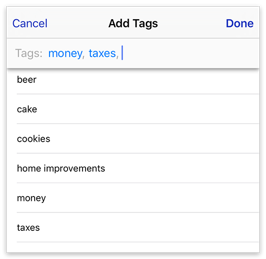
The Add Tags option is only visible when creating new events or to-dos if you have enabled it in Event Details Settings. If you do not see the Tags option, go to Settings > Event Details and ensure the Show Tags switch is enabled. If the switch is on and you still cannot add tags, it is likely because the remote service does not support tags natively, leading BusyCal to hide the option.
Tag History
BusyCal automatically stores tags as you create them and adds them to your Tag History. Navigate to Settings > Advanced > Manage Tag History, where you can add, delete, rename, and colorize tags.
Deleting or renaming a tag in the Tag History dialog does not affect any events that already have that tag. The tags are only removed from the Tag History. However, changing the color of a tag will affect all events with that tag.
Event Colors
Events and tasks can also be colored using Color in Event Details. To show this field, enable Show Color under Settings > View Preferences > Event Details.
For Google events you can edit, this picker selects the event's Google color. These color changes sync with Google Calendar. The beta also supports Google's expanded palette and custom label names. Choose None to clear the event's Google color.
Create, rename, recolor, or delete Google color labels in Google Calendar. They are separate from BusyCal Tags and local Color Labels; editing BusyCal's Tag History does not change Google's labels. See Google Event Colors for syncing and refresh details.
For other calendar services, Color acts as a shortcut for assigning a colored BusyCal tag. You can switch between colors or enter a custom hex color, such as #FF0000 for red.
Tag Syncing
Tag history, including the colors assigned to them, automatically syncs across all your devices via iCloud. You can disable this feature under Settings > Advanced > Manage Tag History.