Using BusyCal iOS with Calendar Subscriptions (WebDAV)
BusyCal for iOS supports subscribing to read-only WebDAV calendar feeds, such as holidays, sports schedules, and other .ics calendars published online.
WebDAV calendar subscriptions are read-only — you can view the events they contain, but you cannot edit, move, or delete them. They are refreshed periodically to pick up any changes made by the calendar publisher.
Adding a WebDAV Calendar Subscription
To subscribe to a WebDAV calendar on your iPhone or iPad:
- Go to Settings > Accounts.
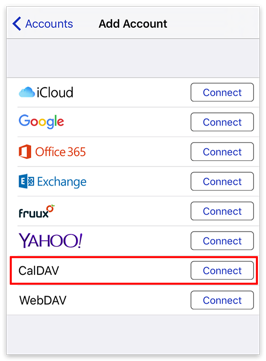
- Tap Add Account.
- Tap the Connect button next to WebDAV.
- Enter or paste the calendar URL (an
.icsorwebcal://link) in the Calendar URL field. - Optionally, tap Refresh to change how often the calendar refreshes, and/or turn off Enable Alarms for this calendar.
- Tap Add.
Finding Calendar Subscriptions
BusyMac provides a US Holidays calendar that you can subscribe to by pasting one of these URLs in the Calendar URL field:
webcal://www.busymac.com/download/us-holidays.icswebcal://www.busymac.com/download/us-holidays-small-icons.icswebcal://www.busymac.com/download/us-holidays-big-icons.ics
We also provide links to popular holiday and sports calendar subscriptions here: Holiday and Sports Calendar Subscriptions.
You must copy the URL and paste it into BusyCal. If you simply tap a link on your iOS device, the calendar may be added to Apple Calendar instead of BusyCal.
Syncing WebDAV Subscriptions from a Mac
If you have already subscribed to a WebDAV calendar in BusyCal on your Mac, you can sync that subscription to your iPhone or iPad through iCloud — without having to subscribe again on each device.
To do this, change the calendar's location from On My Mac to your iCloud account in BusyCal for Mac:
- Control-click the subscribed calendar in the sidebar and choose Get Info.
- Change the location from On My Mac to your iCloud account and click OK.
- The subscription will appear on your iOS device after it syncs with iCloud.
For detailed steps, see Syncing Calendar Subscriptions with an iOS Device.
Managing a WebDAV Subscription
To view or modify a WebDAV subscription you have already added:
- Go to Settings > Accounts.
- Tap the WebDAV subscription in the list.
- From here you can change the refresh interval, toggle alarms, or remove the subscription.
Common Questions
Can I edit events in a WebDAV subscription? No. WebDAV subscriptions are read-only. To create or edit events, use a read-write calendar account such as iCloud, Google, or CalDAV.
What is the difference between WebDAV and CalDAV?
A WebDAV subscription is a read-only calendar feed (an .ics file hosted online). A CalDAV account is a full read-write calendar server where you can create, edit, and delete events. See Using BusyCal with CalDAV for more information.
My WebDAV subscription is not updating. Try adjusting the refresh interval in the subscription settings. Some calendar publishers update their feeds infrequently, so changes may take time to appear.